
PODCAST PRODUCTION · 7 MIN READ
ID3 tags for your podcast.
Clear titles and descriptions help listeners find and choose your podcast. Learn where ID3 tags fit, then save time with a show template and a simple drag-and-drop.
TaggerBuilt for podcast editors.
- Show
- Your Podcast Show
- Host
- Your Host Name
- Episode
- 014 · Plan your next episode
Save the show details. Update what changes each episode.
A new listener may search for a guest, a topic or a problem they want to solve. Your episode’s title and description help explain why it is worth a listen. Those details deserve the same care as the file you send to your client.
Why podcast editors use them
We built ID3 Show Tagger for podcast editors and agencies. Create a template for each show, select it, then drop in your MP3. The app applies the selected tags and saves the file automatically. There is no separate export step.
Some editors already use apps with saved presets. This tool keeps that routine simple: pick the show and drop the file. It also has a music mode, but podcasts are the focus here.
When you edit several shows, it’s easy to carry over the wrong name or cover art. A saved preset gives you a starting point for each client. You can check the details once, then reuse the parts that stay the same.
Tags also give the MP3 some context when it leaves your project folder. A teammate or listener can see which show it belongs to in a player that reads those fields. Each player may show a different set of tags.
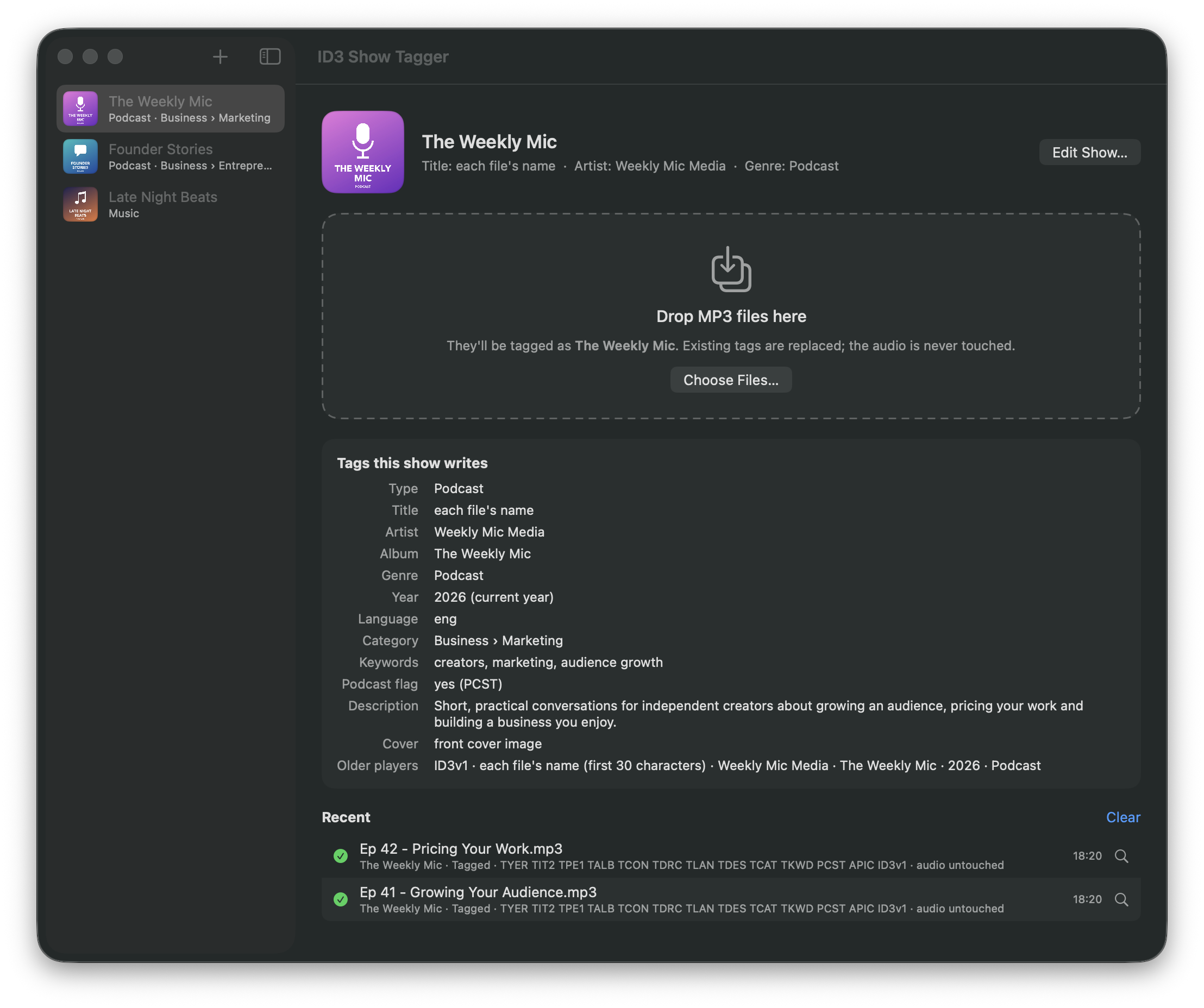
The app saves tags into the MP3 on your Mac. It does not publish to your website or update your podcast host. Processing time depends on the file and your Mac; the current release supports MP3, not WAV.
Why metadata matters for podcast SEO
Good metadata can help people find your show and decide to press play. SEO means making content easier to find through search. For a podcast, the details you publish in your host and on your website are part of that work.
Give search a clear topic
Spotify says a match between someone’s search and an episode’s title and description is an important discovery factor. It recommends using relevant topics and guest names in the description. See Spotify’s description guide.
Apple also lists show names, channel names and episode titles among its search factors. Popularity and listener behavior matter too, so metadata is one part of the picture. See Apple’s search guidance.
Where ID3 tags help
ID3 tags keep the show’s details inside the MP3. Libsyn explains that they help identify downloaded or offline files. It also documents an option to import the title, description and artwork from ID3 tags into an episode’s publishing form. See Libsyn’s ID3 guide.
That is a useful connection: when your host imports tags, well-written file metadata can become the details you publish. Check which fields your host imports and review them before publishing. This varies by host.
For shows distributed by RSS, Apple directs creators to update listing metadata through their host or feed. Tagging the file alone does not update that listing. See Apple’s metadata guide.
Save the details
Title, host, show and cover stay with the file.
Useful for files and handoffsReview & publish
Check the episode title and description. Import tags if supported.
Published details help discoveryGive it a page
Add a clear title, show notes and useful resources.
More context for web searchGive each episode useful text online
A public episode page gives you room for show notes, guest details and resources. Spotify recommends these pages as another way for search engines to find an episode. See its podcast SEO guide.
Google recommends clear, accurate page titles. It also uses page text, and sometimes a meta description, to build the short preview in search results. Those words help people decide whether to visit. See Google’s SEO Starter Guide.
Our takeaway: keep useful, accurate details in the file, then make sure they reach your published episode and web page. The sources above support a discovery benefit for published metadata. They do not establish a separate ranking boost from an MP3’s ID3 keyword field. The amount of benefit will vary by show, topic and platform.
Which ID3 fields should you fill in?
Start with the fields that help someone identify the episode. Agree on them with your client before you tag a batch.
| Field | A useful starting point | Example |
|---|---|---|
| Episode title | This episode’s title | 014 · Plan your next episode |
| Host or creator | Use the app’s Artist field | Your Host Name |
| Show name | Use the app’s Album field | Your Podcast Show |
| Cover art | The approved show or episode cover | Your current artwork |
| Year | The release year | 2026 |
Example values for your own podcast. The app uses the standard Artist and Album field names from the ID3v2.3 format.
Add publisher, copyright and language when the handoff calls for them. Use the description and keywords to give the episode more context.
Add your website and episode topics
Write a short description of your podcast. Include the full URL for your website so someone can copy it from the file’s details. For an episode-specific description, link to that episode’s notes and resources.
YOUR PODCAST SHOW · EXAMPLE
- Description
- Practical talks about making a better podcast. Find our episodes and resources at https://example.com/podcast.
- Keywords
- podcast editing, interview prep, episode planning
- Feed URL
- Your podcast’s RSS feed address
Choose a few keywords that name the topics you cover. Use those terms naturally in the episode title and description you publish, where they help explain the topic. Keep the MP3’s separate keyword field relevant too, while remembering that each player or host may handle it differently.
The website link in your description and the feed URL have different jobs. The website sends people to your pages. The feed URL points to your RSS feed. Update episode-specific links and topics before reusing a preset.
A simple tagging workflow
- Keep the original export. Work from a copy while you test your preset. That gives you a way to restore old tags.
- Choose the right show. Check the host name, show name and cover art. For an agency, use a separate preset for each show.
- Check what changes per episode. Review the episode title, description, website links, keywords and year. A shared preset can write the same value to every file.
- Drop one MP3 first. The selected template is applied and the file saves automatically. Check the result in a player or tag reader, then drop the rest.
- Check your podcast host. Find out whether it adds or replaces tags during upload. Review the published episode details there too.
Our free Mac app, ID3 Show Tagger, handles the file-tagging step offline. Drop an MP3 or a folder to apply your selected show template. The audio is not re-encoded.
One detail to know: the app replaces existing tags. A blank preset field is omitted; it does not keep the old value. Review the preset before you drop a batch.
Before you send the file
Check the episode title, show name, host name and cover art. Review any website links and keywords too. Play the file. Then check that the details in your host match what you plan to publish.
The goal is a file that is easy to identify and a published episode that is easy to understand. Clear metadata supports that routine, from the editor’s handoff to a new listener’s search.