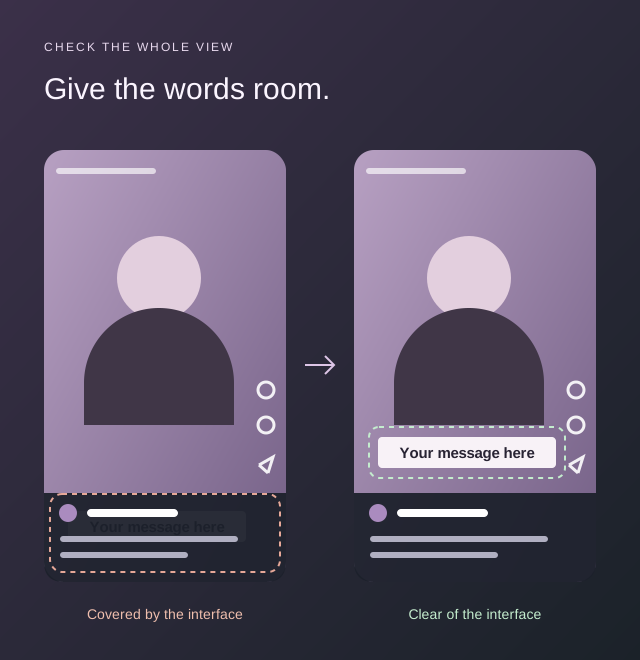
You’ve finished the edit. The captions look clear, and the headline fits. But once you post it, the app adds buttons and text over your video. Some of your words may be hard to read.
A vertical video safe-zone preview helps you spot this before you post. Check how the video plays, then check its cover in the profile grid. Both need to be easy to read.
Follow along with a real Short.
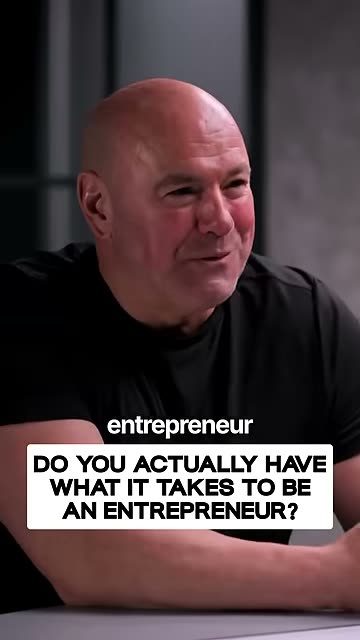
Watch the headline near the bottom.
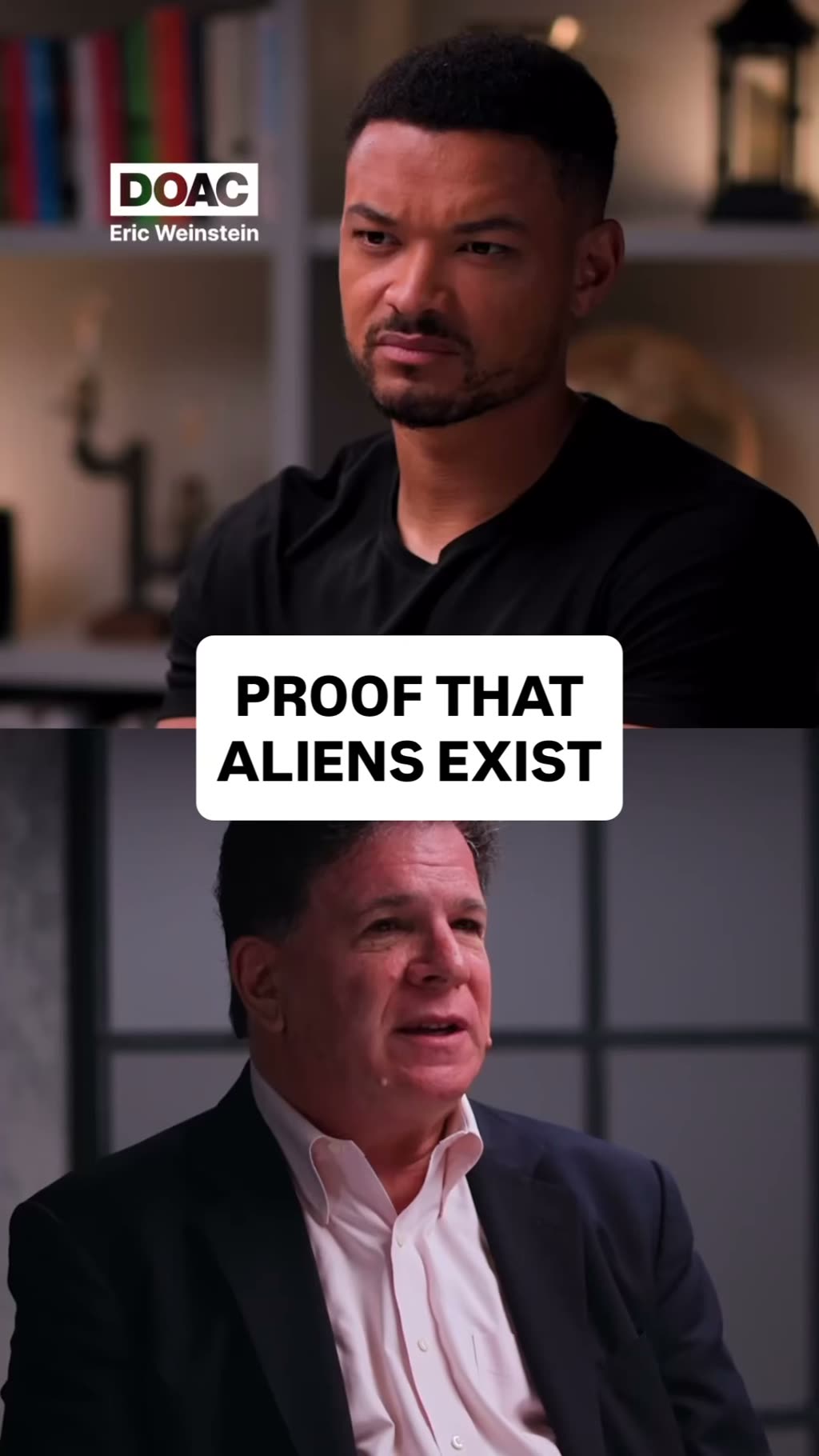
This clip has a subtitle and a large headline in its first frame. We’ll use that frame to show where app overlays may cover the words.
Watch “You Don’t Have What It Takes…” on YouTube ↗The original plays from YouTube when you press play.What is a video safe zone?
A safe zone is the part of the frame where key content is less likely to be cut off or covered. Keep your text, faces, products and call to action in this space. Background footage can still fill the whole screen.
Each app places its own buttons and text over the video. These include your handle, post caption and like and comment buttons. YouTube’s Shorts guide shows where these items may appear. It also warns when text or stickers are too close to an edge.
What is sitting on top of your video?
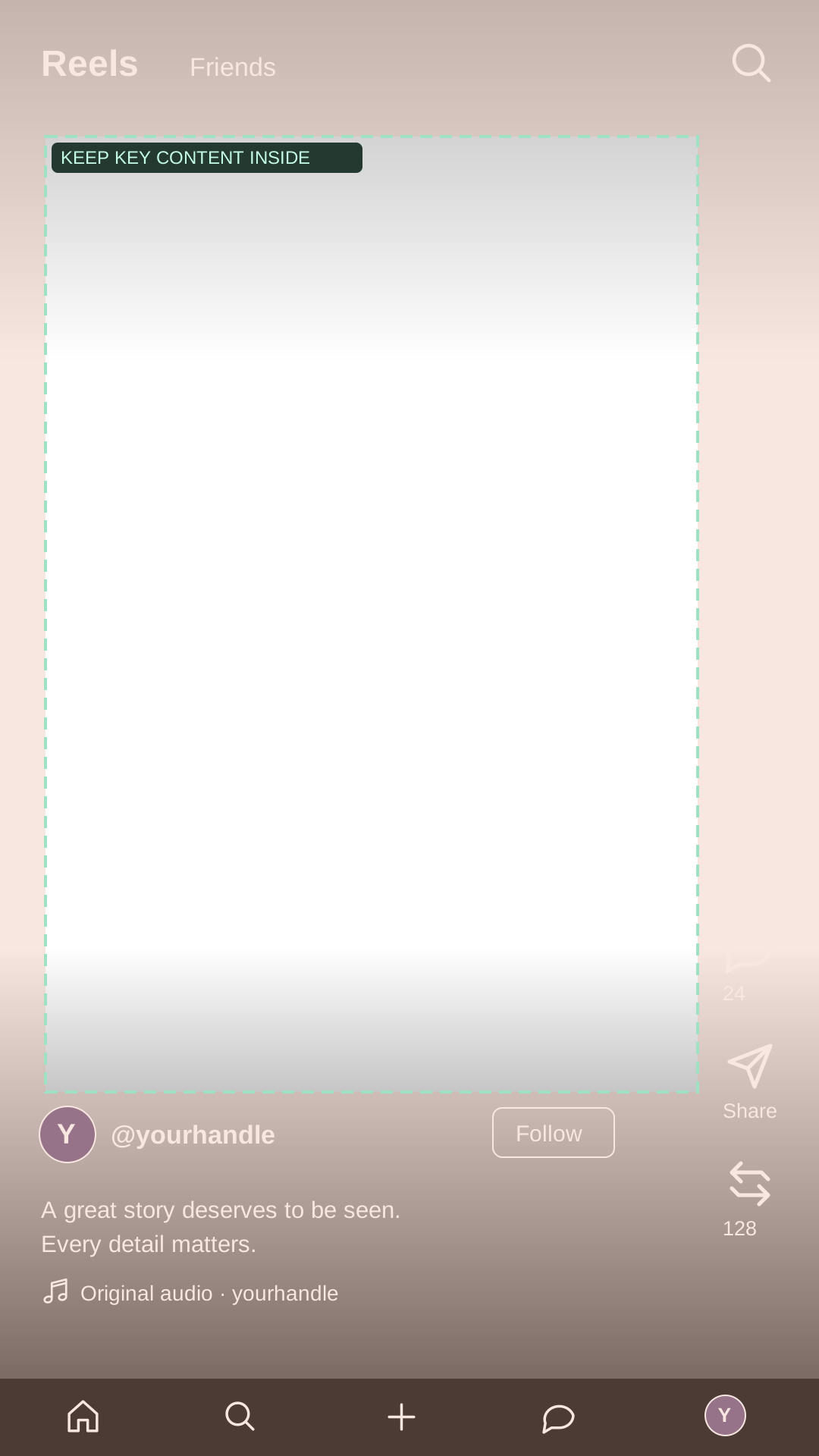
- 1Top navigation
Leave room above your opening headline.
- 2Action buttons
Check the words near the right edge.
- 3Account row
The name and follow button need space.
- 4Post description
More lines can cover more of the frame.
- 5Text inside the video
Burned-in captions stay where you placed them.
Burned-in captions are part of the video file. The app can’t move them for you. If an overlay hides a line, you’ll need to fix it in your edit.
Why check Reels, TikTok and Shorts separately?
You can post the same edit on several apps. But each app puts its buttons and text in a different place.
Check your hook, longest caption, product labels and call to action. Watch the bottom and right edge of the frame. That’s where app overlays often get in the way.
One hook. Room for all three overlays.
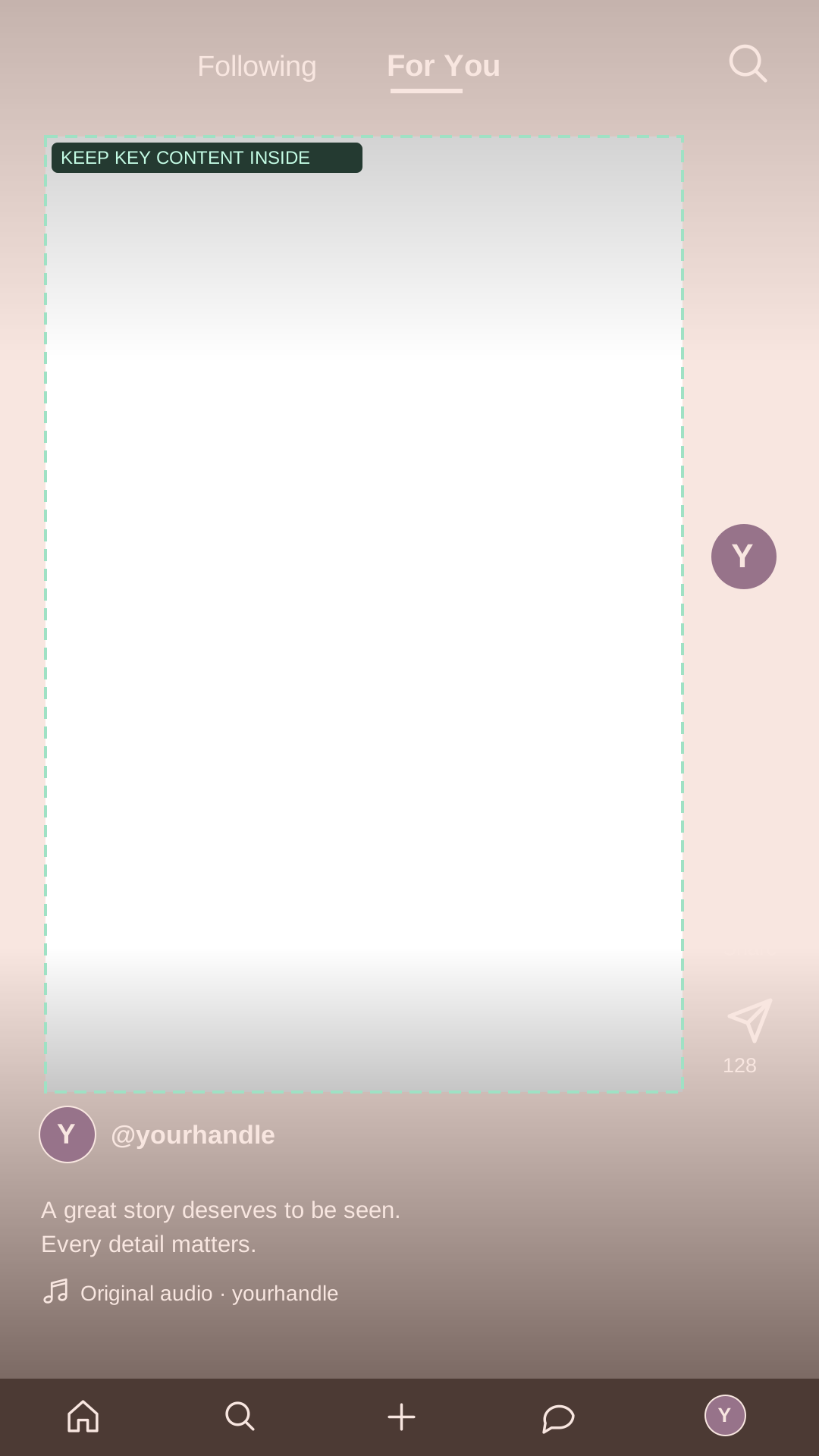
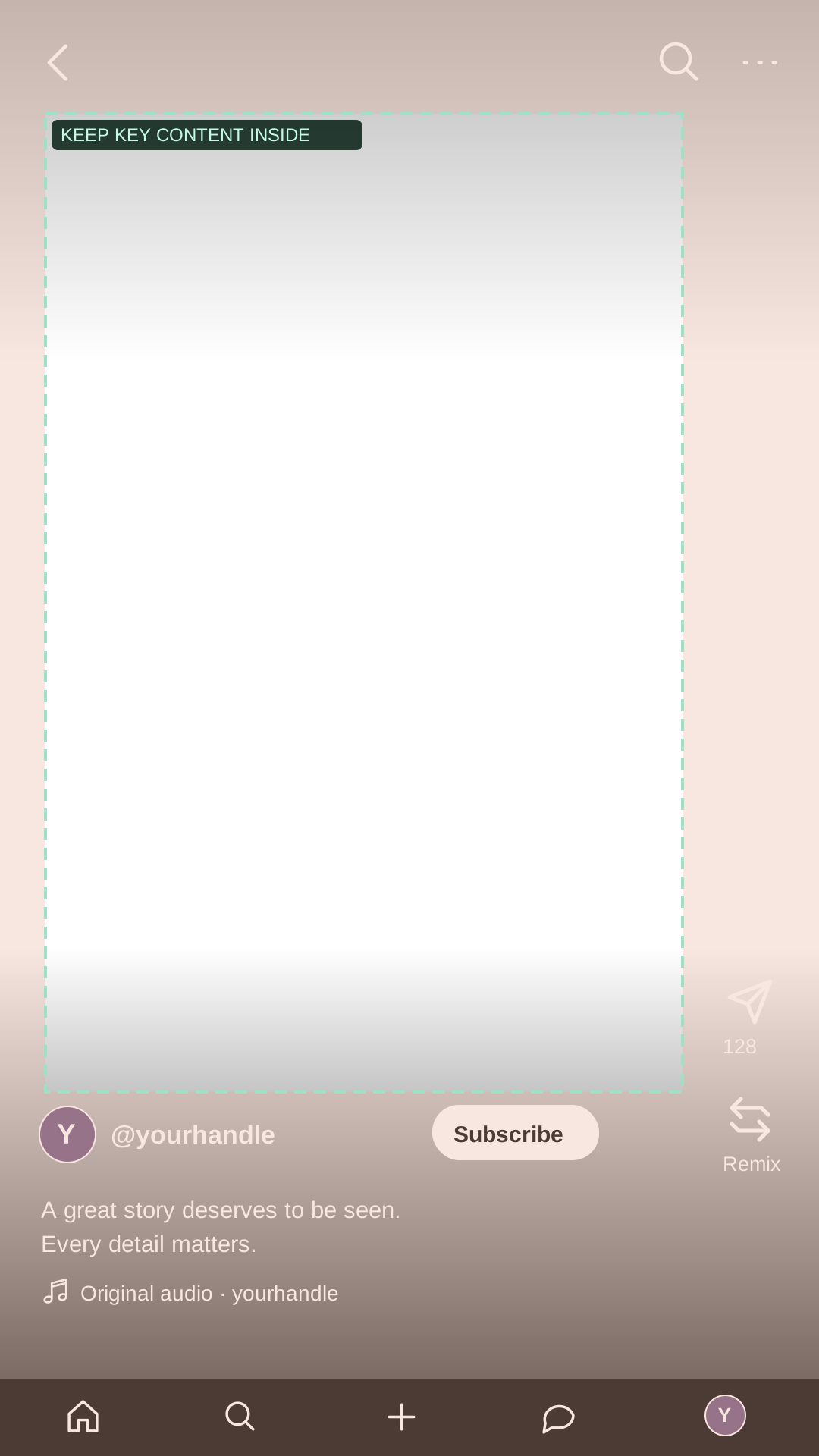
In this Diary of a CEO Reel, the hook sits between the two speakers. The large type and white box make it easy to read. Its position leaves room for the app’s text and buttons.
The hook sits above the account row and post text.
The hook leaves room for the buttons on the right.
The hook stays above the subscribe row and description.
A lower hook has less room.
Our earlier example works as a profile cover. In these player previews, the lower headline runs into the account row. The red marks show where to look.
The lower headline runs into the account row in this preview.
The lower headline runs into the account row in this preview.
The lower headline runs into the account row in this preview.
Take this into your edit: leave space below your hook and beside it. Check the opening frame, then play the full video. A clear first frame does not mean every caption will fit.
There’s no one safe margin for every post. Screen size and caption length can change the view. For ads, TikTok’s own guide says the safe zone depends on the format and caption length. It also says a preview may differ from the live ad.
Use an ad guide when you’re making an ad. For organic posts, check the app overlay too. You can also download our free safe-margin PNG layers and use them in your editor.
Your hook has to work before play
On a profile, people see the cover before they hear a word. A hook gives them a reason to tap. It might be a question, a bold claim or a problem they want to solve.
Look at these real Instagram examples. Both brands use text on their covers. The wording and layout give us something useful to study.
A few words can set up a question.
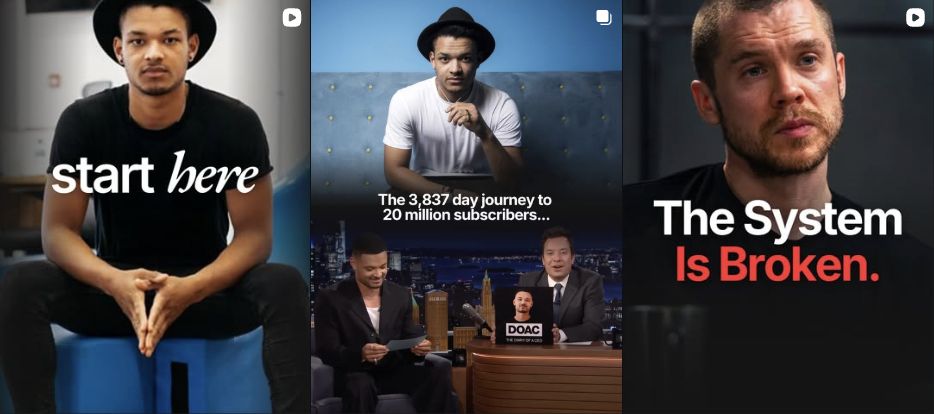
“The System Is Broken.” names a problem, then leaves you to ask why. The large type is easy to scan. Red draws the eye to the last two words.
Make the key words stand out.
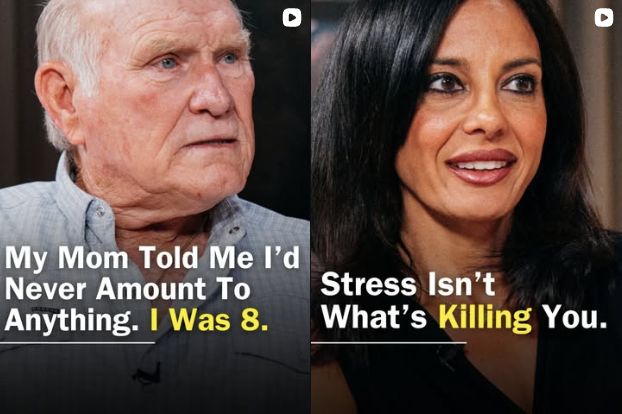
These covers pair a face with a bold headline. White text stands out on the dark image. A few words in yellow guide your eye through the hook.
Try this on your own cover: use one clear hook. Make the words large enough to read in a small tile. Keep them away from the crop edges. Then check that the video delivers what the hook promises.
A cover is the still image people see in the grid. It can be different from the first frame of the video. Check both. The cover needs a clear hook; the video needs clear captions as it plays.
These examples show design choices. They don’t prove that the covers caused more views. Images and posts belong to the named creators.
The profile crop needs its own check
Now check the crop. A hook can fit the full video but get cut off in the profile grid. Look at the whole headline and the person’s face.
Our Instagram grid preview uses a 3:4 crop. For a 1080 × 1920 video, that shows 1080 × 1440 pixels. A centered crop cuts 240 pixels from the top and 240 from the bottom.
Does the hook still fit?
This is the crop used by our tool. The view can vary in the app. If you pick a new cover or move its crop, check that version too. See our sources and preview limits.
Your pre-publish check
- Load the finished export. Use a local video or a supported public link in Vertical Video Preview.
- Switch platforms. Check Reels, TikTok, Shorts, X and LinkedIn. Set the sample handle and post-caption length.
- Watch, then pause. Stop where there’s a lot of text. Check moving graphics and the final call to action too.
- Check the cover. Can you read the hook at grid size? Does the crop keep all the key words?
- Leave a clear QC note. Give a timestamp and a fix. For example: “At 00:08, move the second caption line up.” Check the new export after the edit.
Show your editor what needs to move.
The lower headline overlaps the account row.
Move the headline up, then check the new export across all platforms.
Last, check the app’s own preview before you post. Our tool helps with QC, but it can’t show every screen size or app update.
Common questions
Is Vertical Video Preview free?
Yes. There’s no sign-up. Local files up to 300 MB play in your browser. They are not uploaded to Engaging Boost.
Can I preview a Google Drive or Dropbox video?
Yes, when the video host allows it. Public Drive files that allow downloads can appear in both the player and profile preview. Some links only allow embedded playback. If that happens, choose the same video from your device to check its thumbnail.
Does the tool fix or export my video?
No. It helps you spot layout problems. Make the fix in your editor, then load the new export to check it.
READY FOR A SECOND LOOK?
Check the frame before you share it.
Load your video and check its captions, hook and crop. Then send your editor a clear note about what needs to change.
Open Vertical Video Preview Free · No sign-up · Local videos stay on your device